
 العربية
⬜ Your Guide to Creating Orders and Choosing the Order Type in the Digital Menu
In this article, we will explain how to create a new order through the digital menu, with a detailed explanation of the available order types and how to choose each one.
1️⃣ Creating an Order via the Digital Menu
⮜ To start your order:
-
Enter the digital menu from the homepage.
-
Or you can directly select the order type from the homepage using the buttons under “Select Order Type.”
⮜ To select items:
-
Browse the different categories (Main Dishes, Beverages, Desserts, etc.).
-
Click on the item to review its details, then press “Add to Cart.”
-
After pressing, the Add-ons page for the item will appear; choose what suits you, then confirm the addition.
✳ Note: You can also add the item directly from the menu using the cart icon without opening the item details.
➤ See the illustration below:

2️⃣ Reviewing the Order via the Cart
-
Click on the cart icon at the bottom of the screen to review your order.
-
Check the items and quantities, and you can edit, delete, or add a note if needed.
3️⃣ Choosing the Order Type and Payment Method
After reviewing your order from the cart, choose the order type:
✔️ Dine-in (inside the restaurant)
-
The order will be prepared and delivered to your table inside the restaurant.
✳ Important Note: The dine-in option only appears when scanning a Table QR code.
➤ See the illustrations below: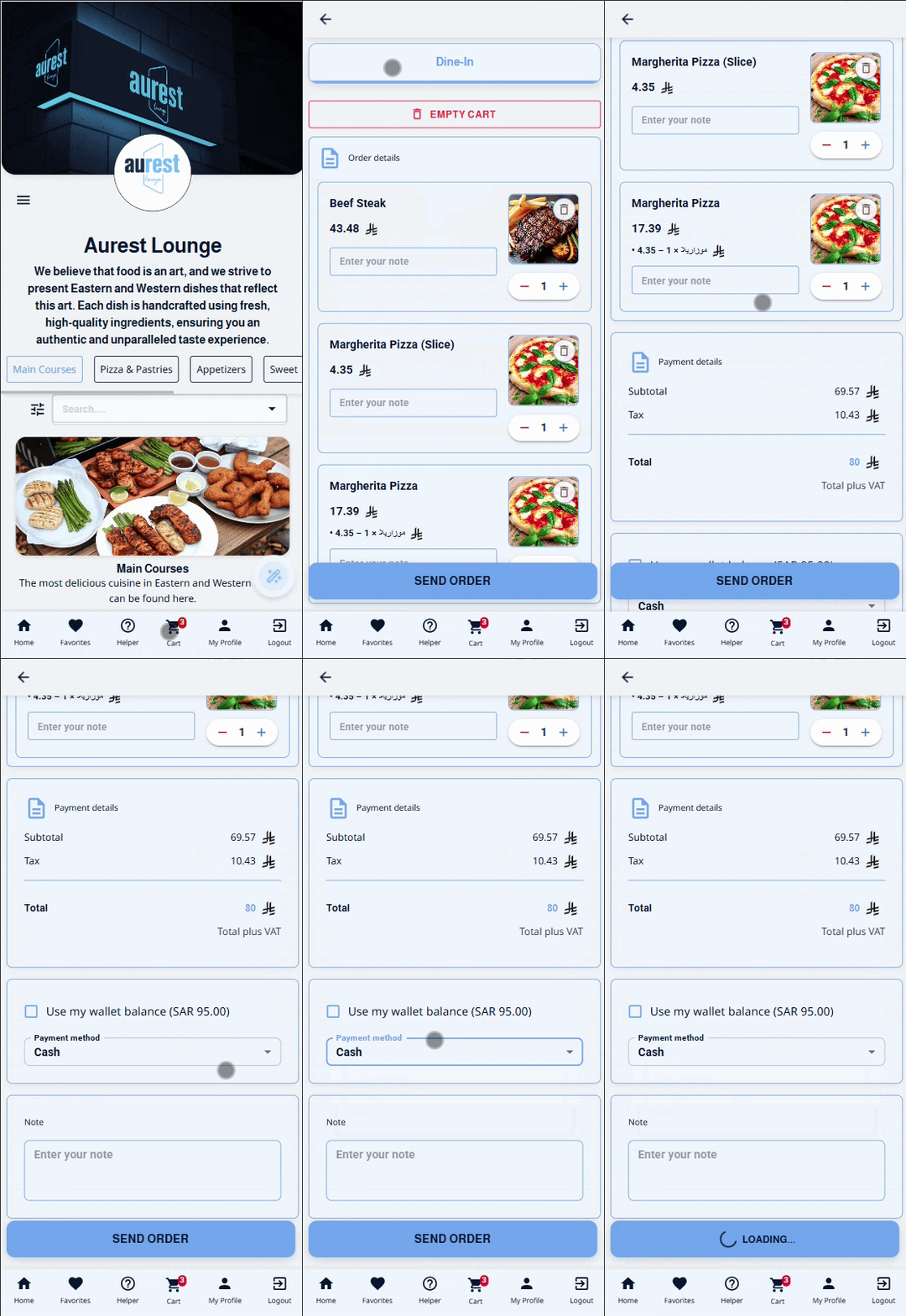
✔️ Pickup from the branch
-
Choose the most suitable branch to collect your order from the pickup point.
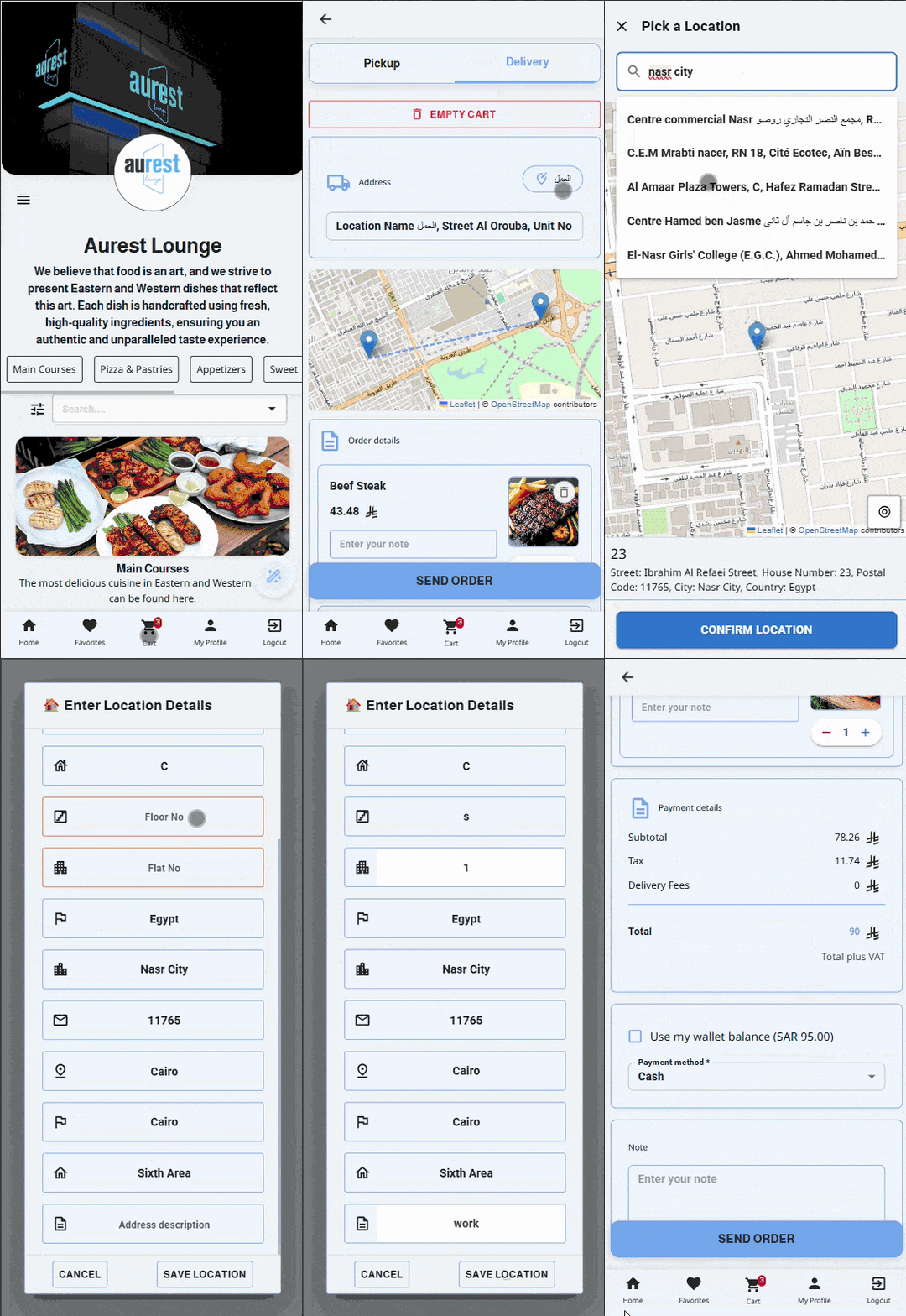
✔️ Delivery to location
-
If you choose delivery and you are not registered, you will first be asked to register your mobile number.
-
Then select your location:
-
Use a previously saved address,
-
Or set a new location from the map, with the option to save it for future use.
-
➤ See the illustrations below:
4️⃣ Confirming and Sending the Order
-
Review all order details and the payment summary.
-
Select your payment method (Cash / E-payment / Wallet balance).
-
Press “Submit Order” to complete the process.
-
A confirmation message will appear indicating that your order has been successfully placed.
➤ See the illustration below:

✨ Result
By following these steps, you can easily and quickly place your order through the digital menu, with the flexibility to choose the most suitable way to receive it (Delivery / Pickup, or Dine-in when seated inside the restaurant) while also benefiting from My Wallet and managing your order smoothly through the cart.