
 العربية
⬜How to Customize Menu Colors in Aurmenu – Step by Step
Aurmenu allows you to customize your menu’s colors and design to match your restaurant’s theme. Follow these steps to easily personalize your menu:
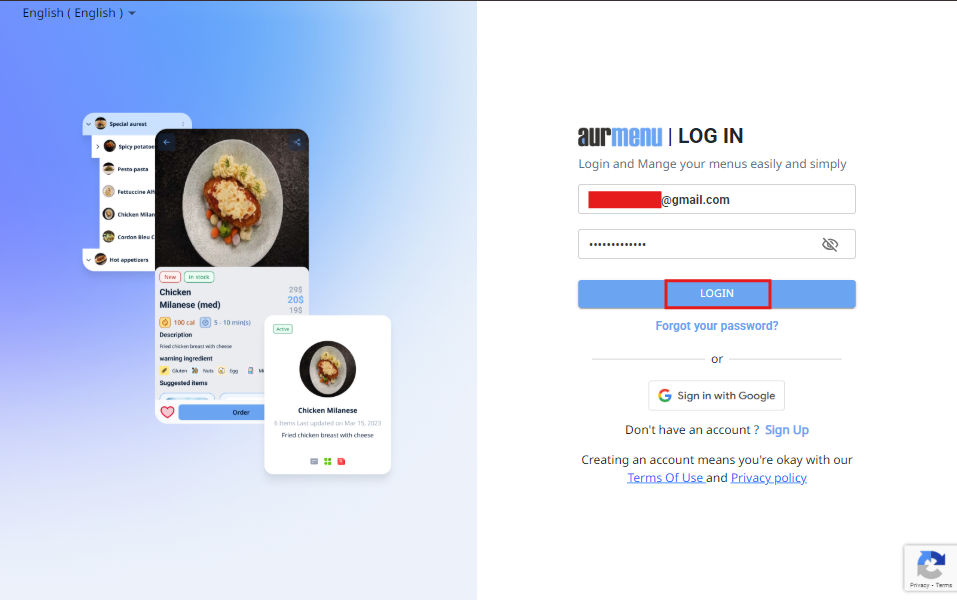
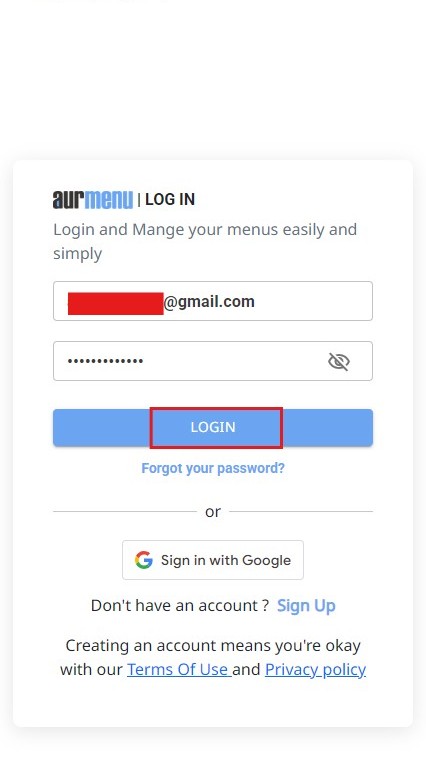
1️⃣ Step 1: Log into Your Account
Before you start, make sure you are logged into your Aurmenu account.
If you need help with the login process, you can check the previous article for detailed instructions.
2️⃣ Step 2: Access Menu Control
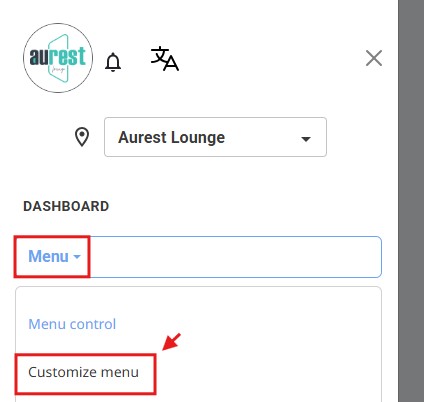
After logging in, you will see the main dashboard of the app.
✔ Click on "Menu Control".
✔ Select "Customize Menu" from the available options.

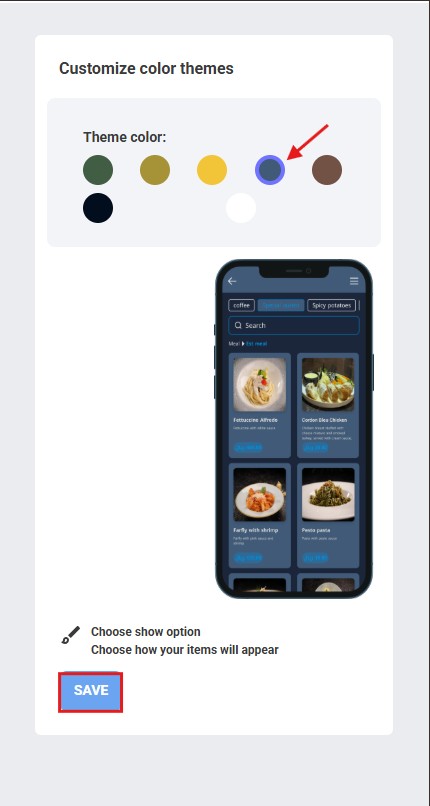
3️⃣ Step 3: Choose the theme color for the menu
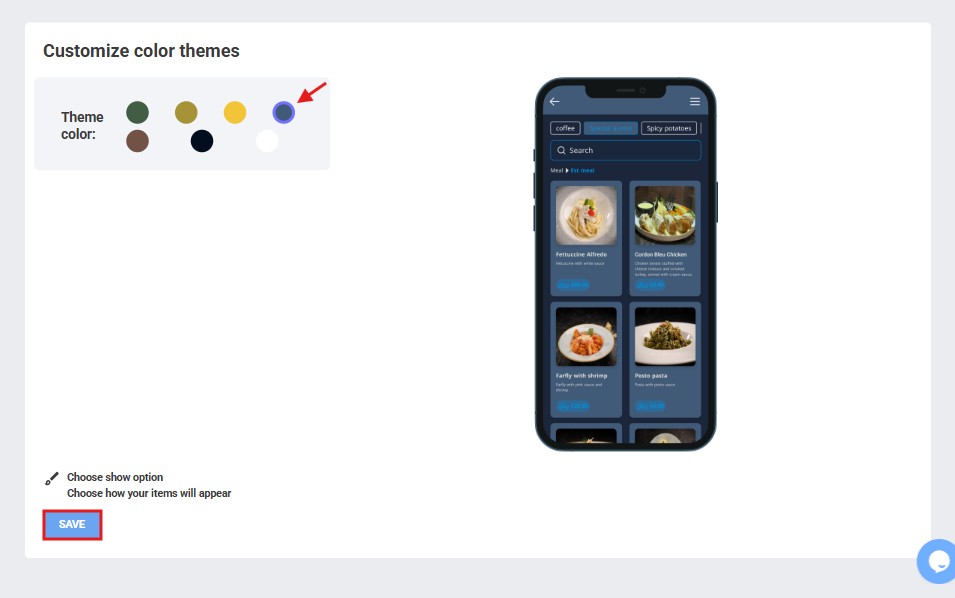
After entering the Customize Menu page, you will be shown a set of color options that you can use to change the appearance of your menu.
Choose a color that matches your restaurant identity or brand.
This color will be applied to key elements within the menu such as buttons and interactive elements
4️⃣ Step 4: Save Changes
Once you have selected the perfect colors and theme for your brand, click "Save" to apply the changes to your menu.
✨ Congratulations!
You have successfully customized your menu to match your restaurant’s identity .